Over the weekend I made a tweet that several people asked about:
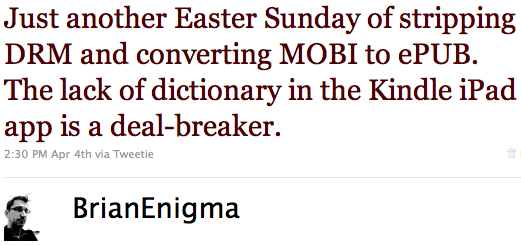
Basically, they wanted to know how to convert DRM protected Kindle books over to ePub books that will work on the iPad.
I love the fact that Amazon was able to release a Kindle app for the iPad on the very first day, but in a side-by-side comparison, I found Apple’s iBooks to be a little more useful to me. It’s a serious set of trade-offs. On the one hand, the Kindle app synchronizes with the cloud and remembers what page I last viewed. If I pick up my actual Kindle or use the Kindle app on the iPhone, then I can resume exactly where I was. There is no equivalent in iBooks. On the other hand, the Kindle app has no dictionary, whereas the iBooks dictionary is streamlined and non-obtrusive. Weighing the two features, the dictionary is more important to me. I can manually figure out where I am in a book if I switch devices, but I often run into words I do not know — for instance “bluestocking” (a derogatory term to describe an intelligent or literary woman) — meaning I have to jump out of the Kindle app, load up a dictionary app, wait for it to finish loading, type in the word, then switch back to the Kindle app. It is just so much easier to tap the word and get a definition in a pop-up bubble.
Given this, I started converting my Kindle books to ePub format. This is a two step process. For the folks that just want to do it and figure out the details on their own, those steps are:
- Use the “dedrm” Python script to strip the DRM from the Kindle *.azw file
- Use Calibre to convert from azw (it’s really MOBI) to ePub
Strip the DRM from the Kindle file
This step is the most difficult and takes a little Terminal mojo. The following directions assume you are running on a Mac (I am sure Python exists for Windows, but you’re on your own if you have a Microsoft box) and that you can do some basic navigation around the Terminal command prompt.
The Kindle AZW files are really just MOBI (a standard eBook format) with some special DRM applied. The DRM is a symmetric cipher, meaning it needs a keyword to encrypt and the same keyword to decrypt. That keyword is just a reshuffling of your Kindle’s serial number.
First, you will need your Kindle, with the purchased book downloaded onto it. Next, you will need a set of Python scripts that go by the name dedrm (including kindlepid.py, mobidedrm.py, and monidedrm2.py). I am not a lawyer, so I do not know if I can provide a direct download link here. I assume this stuff is covered under Fair Use, but I am going to go the conservative route and just tell you to do a Google search.
Plug in your Kindle, and copy the AZW file out of its /Documents folder and into the same folder as your Python scripts. To get the encryption key that Amazon uses to encrypt your eBooks, cd to the directory containing the Python scripts and use this command, substituting the B12345678 with your actual Kindle serial number:
python ./kindlepid.py B12345678
This should come back with a result along the lines of:
Mobipocked PID for Kindle serial# B12345678 is 1Q4Y2VZ*RE
Save that mix of numbers, letters, and asterisk. That’s the key that Amazon uses to encrypt all eBooks for your specific Kindle.
Next, use that key to decrypt the book. You’re actually going to have to do this twice. One will work and one will not (and it will be difficult to know which one worked until you load it in a viewer in the next step). You will need to run the dedrm v0.01 and dedrm 0.02 commands. They differ slightly in the compression method used, but the wrong compression adds some garbage and bad metadata to your book. Be sure to replace the 1Q4Y2VZ*RE with your key derived from the above command. Also, leave those single-quotes in there.
python ./mobidedrm.py mybook.azw mybook1.mobi '1Q4Y2VZ*RE'
python ./mobidedrm2.py mybook.azw mybook2.mobi '1Q4Y2VZ*RE'
Either mybook1.mobi or mybook2.mobi should be the correct decrypted version of your eBook. The next step is to figure out which one is the good one and to convert it to ePub.
Convert AZW/MOBI to ePub
Import the first MOBI file into Calibre and use the “View” icon in the toolbar to see it in the viewer. Verify that this is a non-broken document.
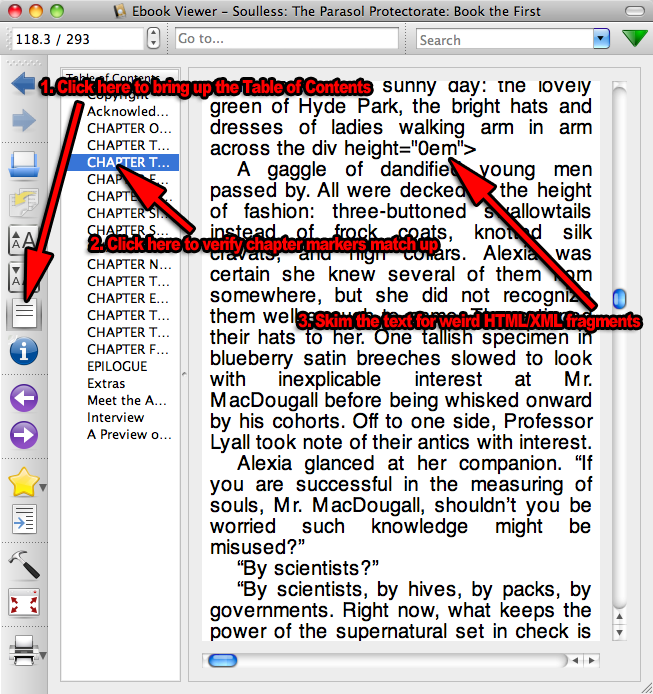
You first want to bring up the table of contents by using the icon in the toolbar on the left. Click around in the table of contents to verify that chapter markers really do line up with the chapter text. Skim through a few dozen pages looking for weird HTML or XML fragments (angle brackets and equal signs that look out of place).
If everything looks good, you imported the good document. If things look funky, close the viewer, delete the document from Calibre, then import the other one.
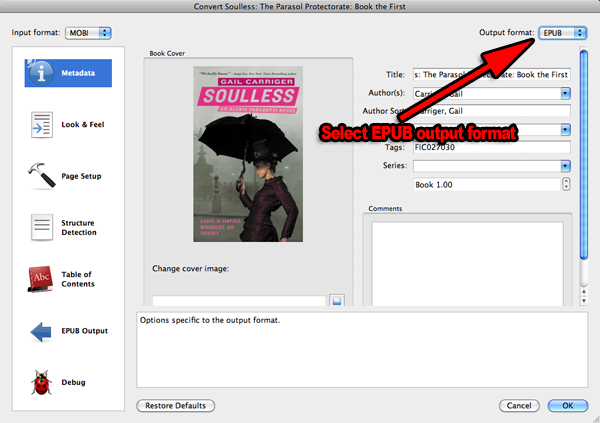
Once you have the good document imported, select it and click on the “Convert E-Books” icon in the toolbar. Be sure to change the output format to EPUB. You can customize other options as you see fit. Click “OK” to convert.
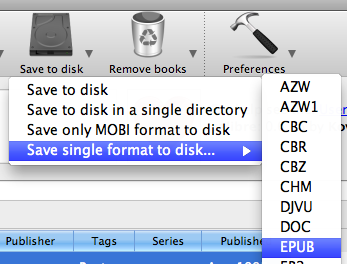
Once converted, you can find the file in your Calibre folder or you can use the export functionality to save it to disk.
Drag the resulting *.epub file into the Books section of iTunes and you’re set. The book you purchased on Amazon can now be read in Apple’s iBooks application.


I love this post- thank you for taking the time to share it. I am, however, stuck. My kindle ebook was downloaded via the kindle app on the iPad, and as I have no Kindle device, I have no serial number that is easily accessible to me.
Is there any way to retrieve the necessary kindle serial number used on non-kindle devices?
Sorry, I’m not really familiar with how to get files out of the iPad, or even what they use as an encryption key once the file is available. Perhaps if/when a jailbreak is released for the iPad, it might be possible, but if it’s anything like the iPhone, that involves setting up a network and SSH server and lots of more hardcore unix-y things, whereas you can just copy the *.azw file out of the Kindle as if it’s an external drive.
well I was able to get the .azw file out just fine by downloading the macintosh client of the kindle reader and whispersyncing it to my HD. But the dilemma of figuring out the key remains. Thanks for your response.
A concise explanation of how to get to your Iphone books and how to get a get a usable PID. Perhaps something analogous will help for iPad users.
http://www.mobileread.mobi/forums/showthread.php?t=65275
Your instructions are very helpful. I was able to convert a lot of my books into ePub from my Kindle to my iPad. But wondering, what about those titles that have spaces. I keep on getting a error msg that says : No such file or directory: “A” because my azw file has a title that begins with “A Fine…” I have tried putting “_”, “-“, ” “, ‘ ‘, “\” in place of the space but no dice… Will I be able to convert these books? Thanks for your help.
For filenames with spaces on the command line, you have two options. First, you can specify each space as “\ ” (that’s backslash space). Alternately, you can just wrap the whole thing in single-quotes like ‘A Fine…’ and skip using backslashes.
Or you could totally subvert it and rename the file to get rid of the spaces — make ’em underscores or something. The filename is just a filename. The name of the book is a field contained inside of the file.
Thanks! I got rid of the spaces and the conversions were successful!
I also found that some of my Kindle files have an azw1 extension vs. just plain azw. I have not been able to convert them using python. Do I use a different converter?
I can’t say that I have run into an azw1 file extension, so I am not sure I can offer any advice on that.
az1 files are Amazon’s Topaz format (when downloaded via computer they come out with the .tpz extension, and .azw1 when grabbed with WhisperNet directly onto a Kindle). Topaz files are funkier than .azw files when converting. I’ve stripped the DRM from all of my Topaz files using the scripts in the “tools_v1.6b” archive (available here & there on the intertubes), but instead of just a de-DRM’ed book, it leaves me with an HTML file. Calibre can then convert that to epub, but the OCR isn’t so well corrected in Topaz files. You might want to edit it a bit before converting.
Oh, hey, thanks snorkledorf! I haven’t run into an azw1/tpz file yet, but I’ve snagged tools_v1.6b for if and when when I do.
And yes, I have even noticed weird and blatant OCR artifacts in regular azw files: https://netninja.com/2009/09/15/the-little-details-like-hyphens-and-em-dashes/
The thang which concerns me is the app kindlepid.py is downloaded from Paraguay and probably comes loaded with spyware from some cloaked Chinese hacker – I’d rather wait for Apple to give us the app to import kindle books into iPad – in the meantime . . . just got my iPad last week and I love it – only have 6 books from kindle for iPhone so not too concerned about switching between apps to read. Inconvenient, yes, worth the risk of losing any personal info to a hacker with a keystroke logger imbedded into a script – NO – perhaps I am overly cautious but I am not taking the risk. Great info though, thank you for sharing
I wouldn’t hold your breath on an official import tool. Converting yourself falls, as best as I can tell, in the fuzzy gray area of “Fair Use” under the DMCA. I’m not sure that a big company could provide the same thing — I have seen several companies that tried to provide DVD ripping software that then got sued out of existence.
As far as malware in the Python script: it is just a script file. It’s about 40 lines of text when you open it in a text editor. If you have any programmer-inclined friends, you can have them take a look at the content. I had similar concerns when I first downloaded from a site of similar questionable origins. Fortunately, Python is fairly straightforward and readable.
So how bout converting azw that are downloaded on my pc to epub format, is it possible?
It is possible and the theory and steps are the same as above, but the key would be different. I don’t know how the PC version’s keys are generated, unfortunately. If you knew the encryption/decryption key for the PC version’s AZW file, you’d be able to do it.
yep, this is the crux, if anyone has figured out how to get a Kindle for PC PID to use with python, PLEASE, let me know!
@sioned: that is precisely what this article covers.
no, this requires that you have a kindle….i do not 🙂 I want to be able to do this without involving a kindle, only the pc.
Sorry sioned, your question only asked if azw files could be converted to epub, which is covered here (use calibre). However, the good news is that what you are trying to do can be accomplished too (I’ve done it).
Basically you will still use 90% of this guide. When you get to the bits hat require you to use a kindle, refer to the link that Castell posted (reply #4). The link will direct you to a guide that shows you how to get your ebook file off your device and onto your computer, and then how to get a useable serial number from iTunes. Once you’ve got that, you can return to Brian’s guide here and resume the process. Hope that helps.
Awesome guys, thanks Taylor and Brian. I will give it a try later today, frankly I’m tired of messing with this stuff for 2 days with minimal results, lol. 😉
Ugh, I’ve been to all the links and I’m still struggling.. can u tell i’ve never done anything like this before? lol.
Anyway, here’s my problem, i don’t have an ipod or i-anything.
I have downloaded a book I want onto the Kindle for PC app, I have python, I need a Kindle PID to dedrm the .azw file so I can turn it into an .epub file and use it on a different ereader format.
All the links i’ve read tell you how to get the Kindle PID if you have an ipod, etc.., which I don’t, so is there anyway to get a PID to use with python to dedrm this book??
Thanks for all the help, i’m still hopeful i will get to read what i want the way i want…eventually. 😉
Oh, my apologies Sioned, I have not done it the way you are asking. I think I heard of someone getting it to work, but I don’t remember in detail. I think there is some sort of dummy azw file you download, and when you run a script on it, it provides your PID. I would double check the link posted by castell above for this information, otherwise I don’t know how to help, sorry =(
Brain Engima or others that might be able to assist,
Does anyone know how to convert .azw from Amazon subscription news papers into ipad readable format? I know the kindle for ipad app. and kindle for mac app works for amazon purchased books but it does not work for news paper subscriptions. Anyway, around this?
thanks,
I’ve used different versions of mobidedrm and all of them give me the following error:
Error: no key found. maybe the PID is incorrect
I’m sure my PID is correct and I’ve checked my Serial# a hundred times. I’ve tried both the PID with ‘ and without. The original book title is Zombie, so there’s no need for ‘ there.
I’ve tried this command line and several variations of it. I’ve also tried it with different ebooks both transfered from my Kindle and downloaded from Amazon.
python ./mobidedrm.py Zombie.azw mybook1.mobi ‘XXXXXXX*XX’
I’m running out of ideas. Anyone has any suggestions?
No matter what I do, I get the message “Error: no key found. maybe the PID is incorrect” I have obtained the 40 digit number from both iPad AND iPhone. I used the converter found at Kindle Tools PID Generator as well as the “python kindlepid.py XXXXXXXXXXXXXXXX” There is both an older version which generates numbers with the *XX in them and a newer one which has no * and produces the same number as the PID Generator. I have the Kindle Whispersync application on my Mac and have the downloaded files in a folder “My Kindle Content” There, each azw file has a companion mbp file. The web says “This file is used to store metadata like bookmarks, annotations, last read position and other data. The MBP file is also used on the Kindle to store information about a book being read on the device.” Any connection to the problem of conversion? I am stuck – and it seemed so easy.
The same thing is happening to me and I’m also on a Mac.
Do keep in mind that every device or application that has a copy of the ebook has a different key. The file downloaded over WiFi or 3G into your iPad has a different key than the one downloaded over WiFi or 3G on your iPhone, which has a different key than the one downloaded by the Kindle app on the Mac. If you’re trying to use the iPhone or iPad key on the desktop software’s file, it won’t work. You’ll need the key of the desktop software. I’m not familiar enough with the software to know what the key might be or how to find out what it is (I mainly download onto my hardware Kindle and use its serial number, so haven’t had the need to investigate further).
One thing to keep in mind is that with the Kindle 2.5 update a month or two ago, they changed their DRM. Apparently now it uses a separate key per-book instead of a single DRM key on a given device (per-PID). I’m not sure how that effects files downloaded onto the iPad/iPhone, but files downloaded on my Mac for reading on my Kindle don’t de-DRM easily anymore using the scripts.
What I’m doing to work around this is use VMWare to run Windows on my Mac (yeah I know, I know), and run the Windows version of the Kindle app there. It still uses the old DRM scheme so the PID and such work as before. I’ve also turned off auto-update on it, so it hopefully won’t update itself to the new DRM scheme.
@Snorkledorf: How did you find a PID for the Mac itself, as the iPhone or iPad ones will not work with the files downloaded on my Mac? Finding that would be helpful.
Well that’s the thing, I’ve never actually figured out how to strip the DRM for books that are downloaded via/for the Mac version of Kindle reader. The PC version DRM is a known quantity however, so for me it’s worth it to fire up Windows in a virtual machine on the Mac, then do all the de-DRM’ing inside Windows, using Kindle Reader for PC.
Since any Mac can run Windows (I use VMware Fusion, but Parallels or Boot Camp will work just as well), that was just the easier route for me. Even if I have to grit my teeth for the duration. 🙂
If anyone is getting this error:
Error: no key found. maybe the PID is incorrect
I have one solution… In my case, I was using lowercase letters for the serial number. WRONG! The kindlepid.py script is CASE-sensitive.
(Yes, cAsE shouldn’t matter with a hex number, but in this instance it does. Hopefully a new version may rectify the bug! I’d actually like to see the decrypt script process an entire directory at once…)
Everything decrypted just fine after using an all-caps serial number! (Except for the book we bought after the firmware v2.5 upgrade…)
Hope this helps someone Googling for an answer…
Thanks for sharing this post. I have to say epub is hot now.
So you prefer Ipad rather than Kindle?
Thank you soooo much works great on my MAC, and I don’t have a kindle but can still get files from amazon converted to read on my Kobo….I tried all the other stuff with only a headache, but yours was simple and easy.
I’m glad it helped!
yo dawg, i heard u like topaz. http://pastebin.com/GvQMw18w
If you’re trying to use the iPhone or iPad key on the desktop software’s file, it won’t work. You’ll need the key of the desktop software. I’m not familiar enough with the software to know what the key might be or how to find out what it is (I mainly download onto my hardware Kindle and use its serial number, so haven’t had the need to investigate further).
Nice, It is very clear. This problem is simpler than what I imagine. In exchange, I share with you the ipad to mac transfer – http://www.ipadtomactransfer.org/, which help me a lot and there is no harm in trying it. Many thanks.