A few months back, around the possible demise of the tr.im URL shortening service, there was a sudden rise in popularity with running your own URL shortener on your own boutique URL. That was when I set up Ninja Me (nja.me) using YOURLS. At the time, I reverse-engineered the undocumented API enough to hack Twitter-Tools to use that instead of bit.ly. (As a sidebar, Twitter-Tools has since added official hooks for the URL processing, making my inelegant hack just that: an inelegant hack. I need to write a real solution soon.) The most recent version of YOURLS, 1.4, has fully documented the API. Serendipitously, this comes at the same time that Tweetie 2 for the iPhone added custom URL shortening.
 +
+ =WIN!
=WIN!
You can then combine the power of Open Source with the power of well-documented closed-source and use your YOURLS installation with Tweetie. It is actually quite simple.
Versions
This post is specifically about the 1.4 version of YOURLS and the 2.0a version of Tweetie for the iPhone, but I assume should work (perhaps with minor modification) for future versions — try it and let me know the result! The browser screenshots that follow are Firefox 3.5. If you are using Safari, you will see much of the same text, but minus the formatting and surrounding tags. I have no idea what Internet Explorer will do, but I have previously seen it want to download XML as a file instead of displaying it. If in doubt, just use Firefox.
Determining Your Custom URL
Before you can configure Tweetie, you need to determine what URL to give it. If you feel confident in your web skills, you can probably jump to the end of this section for the final URL, otherwise keep reading. The specific URL is highly dependent upon your YOURLS domain name, installation location, and login. It can be calculated with a tiny amount of work, as you will see.
The custom URL begins with the URL to where you have installed YOURLS. For me, this is “http://nja.me”. For you, it is another domain and may include a subdirectory. Take this, and append “yourls-api.php” to the URL. To verify, you can enter this URL in a web browser (for me, it is http://nja.me/yourls-api.php), and you should see something to the effect of “Please Log In.” This is the base URL to which you will add some parameters: your username/password, action, and format.
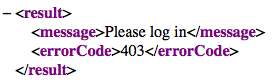
Take that base URL and start by adding “?username=MyUsername&password=MyPassword“, of course replacing MyUsername with your actual username and MyPassword with your actual password. You set this up when you first installed YOURLS, but if you have forgotten, it can be found by opening includes/config.php in a text editor and looking for the section $yourls_user_passwords. (In my installation, I have one username/password combination I use interactively and one I use for the WordPress and Tweetie API, but I’m extra paranoid like that.) If you paste this new URL into a browser, you should get a message about a missing action if everything went correctly.

If you see this message, then just append “&action=shorturl&format=simple&url=%@” to your URL. This will give you a final URL that looks something like this (obviously, with your own domain name, username, and password):
http://nja.me/yourls-api.php?username=MyUsername&password=MyPassword&action=shorturl&format=simple&url=%@
Try pasting that in your browser, but manually replacing that funny “%@” with, for instance, http://google.com:
http://nja.me/yourls-api.php?username=MyUsername&password=MyPassword&action=shorturl&format=simple&url=http://google.com
This should print back a short URL that points to Google. If this is the case, you’re good to go.
Configuring Tweetie
- Go to the top level “Accounts” screen in Tweetie.
- Touch the “Settings” button in the lower-left.
- Touch the “URL Shortening” option:
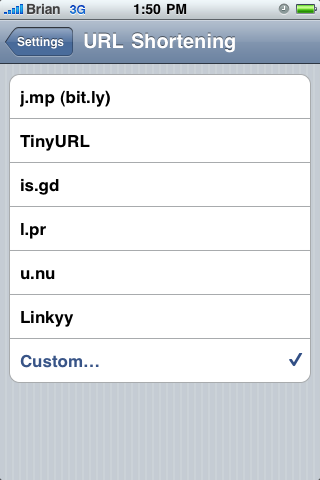
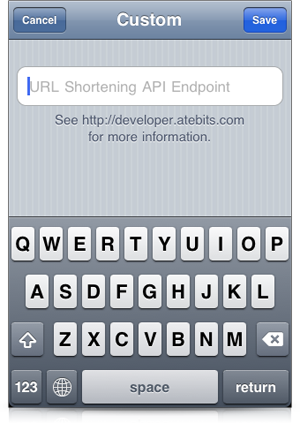
- Touch the “Custom…” option.
- Enter the custom URL you got from the above section. This is the URL with “%@” in it. Tweetie automatically replaces that funny little two-character code with the URL to shorten.
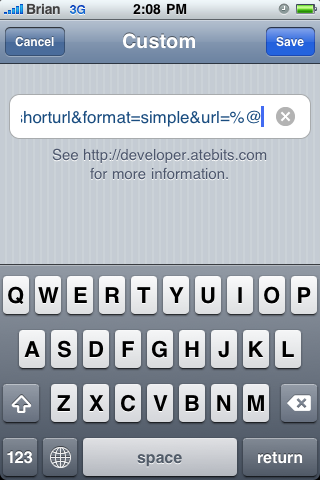
- Touch the “Save” button.”
Test It
- Get yourself a nice long URL. I opened Mobile Safari, typed “test” into the search bar, then copied the nice long resulting Google URL.
- Start a new tweet and paste the URL in there.
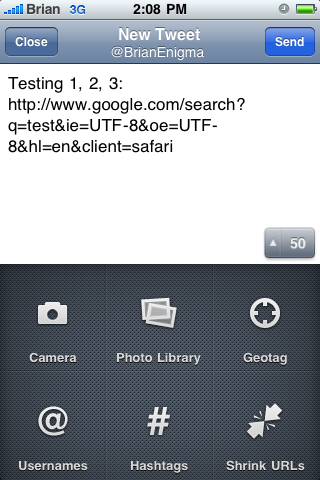
- Select the “Shorten URL” option (in case you did not know, you can reveal that by touching the message length counter in the center right of the screen). In a few seconds, you should have a short URL going through your service. If you did something incorrectly, Tweetie falls back to using bit.ly, so if you see a bit.ly URL, double-check what you entered as your custom shortener.
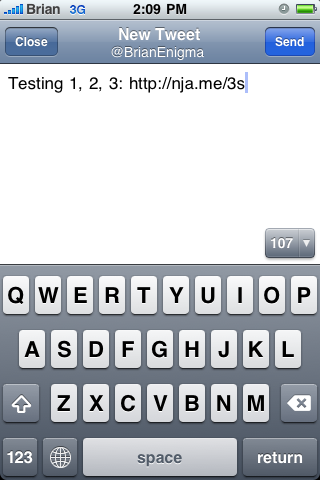
And that’s all there is. You now have Tweetie using your custom URL shortening service.


Thanks Net Ninja Dude,
I managed to roll out yourls on our site yesterday and now thanks to this post, I can use my own service with Tweetie2. This is pretty cool, well done on putting this guide together.
You’re welcome! I’m glad it was helpful. I was kind of unsure how useful it would be to others. Half the time when I post stuff like this, it’s to help me remember how I did it if I ever wipe out my settings.
Hi! I just set up Yourls on jta.gs (my name is Justin, so J Tags… *shrug)
I followed your directions and it worked perfectly! Thank you so much. This has really been a great help.
Excellent! It’s great to hear when little things like this help out others!
Going to transfer my short domain from bitly.pro to YOURLS at the weekend.
I’m hoping I can easily follow this tutorial to use my own URL with dlvr.it!
Could I contact you for help if I need it? -I’m a noob when it comes to working with APIs
I’m not sure that I have the spare time to take on any sort of tech support, but YOURLS is pretty easy to set up, so you’ll probably be fine. If you run into any issues, you may be able to find help on their Google project page: http://code.google.com/p/yourls/